How to Convert PDF to Excel?
Introduction
Is spending lots of time extracting tables from PDF files to an Excel worksheet? With the help of PDF to Excel Free, you can convert even the most complex PDF documents to editable Excel worksheets easily.
Step 1. Input PDF Files
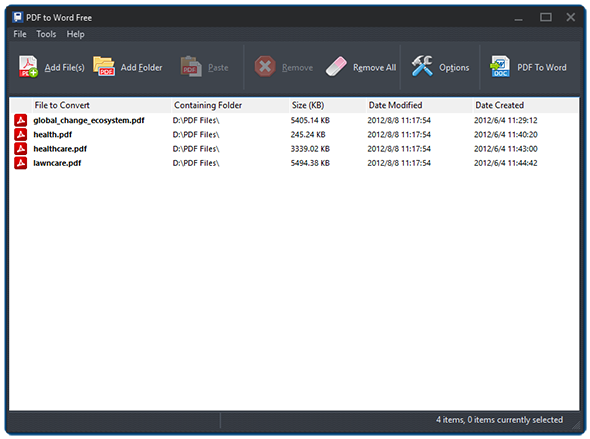
Launch PDF to Excel Free and click "Add File(s)" or "Add Folder" to add PDF files you want to convert. The files will be listed in the window with total number displayed at the bottom of the program. To delete one or all of them, click "Remove/Remove All".
Step 2. Specify Conversion Settings
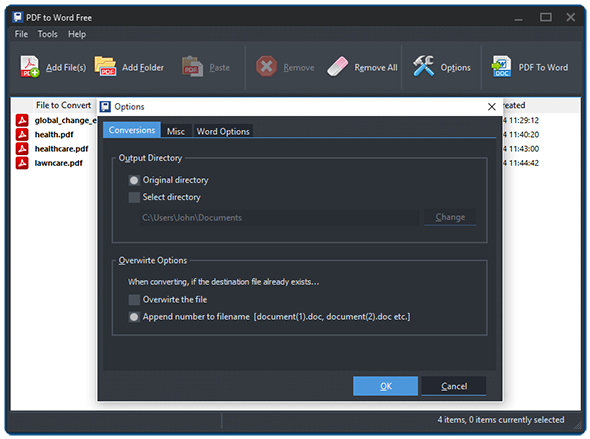
Click "Options" to specify the conversion settings. In the "Conversions" tab, you can select the output directory from original directory or check "Select directory" and click "Change" to choose the directory you want. You can also set the overwrite ways when the destination file already exists.
It also allows you to define the page range to convert in "Excel Options". You can convert all pages or a continuous range. Enter values (number of empty columns) to set the left/top indent. You can also specify the render modes to include or exclude formatting. If you want to put all the converted files into one worksheet, check the box at bottom and set the table space value.
Step 3. Convert PDF to Excel
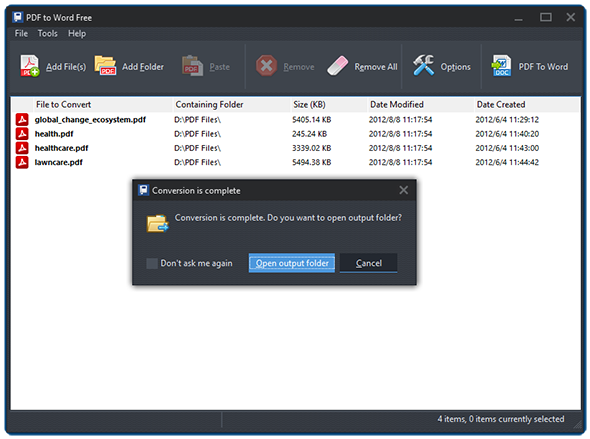
Click "PDF to Excel" to start conversion. Within seconds, the conversion will be completed. Click "Open output folder" to directly find the converted files.
Frequently Asked Questions
- Does PDF to Excel Free keep table structure?
- Yes. Rows, columns and cell values are extracted into an editable spreadsheet. Use the indent and render mode options to fine-tune the layout.
- Can I merge every PDF into one Excel worksheet?
- Yes. Enable the merge option and set a table spacing value to combine all converted PDFs into a single workbook.
- Do I need Microsoft Excel installed?
- No. PDF to Excel Free works without Microsoft Excel, Adobe Acrobat or additional plugins.
- Is there a limit on file size or page count?
- No hard limits. You can process large PDFs and batch folders — practical speed is around 500 pages per minute.
- Is PDF to Excel Free safe?
- Yes. The installer is malware-free and conversion happens locally on your Windows PC — files never leave your machine.