How to Convert PDF to Word?
Introduction
As we know, PDF is a good file format for sharing and exchanging documents, text formatting can be preserved exactly like a paper book when reading. However, you will find it is not easy to edit PDF text, while there are occasions you need to reuse PDF content. Fortunately, you can find an alternative way – convert PDF to Word for editing use PDF to Word Free. Now, this free PDF to Word converter can operate PDF to Word conversion without hassle.
Step 1. Input PDF Files
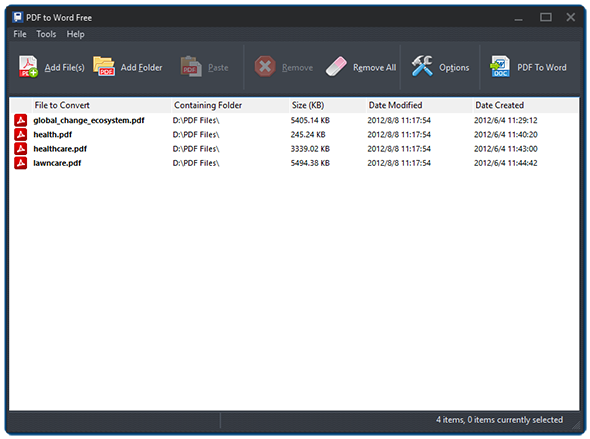
Launch PDF to Word Free and click "Add File(s)" or "Add Folder" to add PDF files you want to convert. The files will be listed in the window with total number displayed at the bottom of the program. To delete one or all of them, click "Remove/Remove All".
Step 2. Specify Conversion Settings
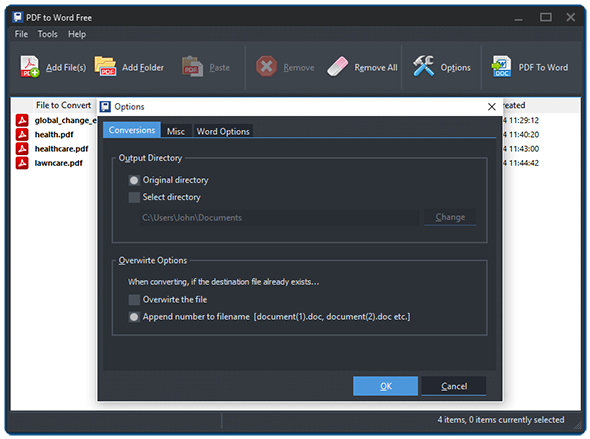
Click "Options" to specify the conversion settings. In the "Conversions" tab, you can select the output directory from original directory or check "Select directory" and click "Change" to choose the directory you want. You can also set the overwrite ways when the destination file already exists.
It also allows you to define the page range to convert in "Word Options". You can convert all pages or a continuous range. There are 3 render modes provided so that you can make the resulting Word document look as if it was typed manually (Flowing) or exactly like the PDF pixel by pixel (Exact). You can also choose an eclectic mode (Continuous) with some advantages of both the two modes above.
Step 3. Convert PDF to Word
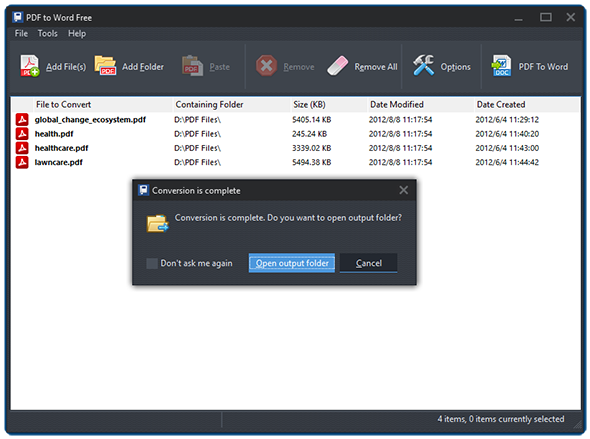
Click "PDF to Word" to start conversion. Within seconds, the conversion will be completed. Click "Open output folder" to directly find the converted files.
Frequently Asked Questions
- Is PDF to Word Free really free?
- Yes. PDF to Word Free is 100% free for personal and business use, with no registration, watermarks or hidden limits.
- Will the formatting of my PDF be preserved?
- Yes. Text, images, tables and layout are preserved. Choose Flowing, Continuous or Exact render mode to control how closely the Word file mirrors the PDF.
- Do I need Microsoft Word or Adobe Acrobat installed?
- No. PDF to Word Free is standalone and does not require Microsoft Word, Adobe Acrobat or any additional plugins.
- Can I convert several PDF files at once?
- Yes. You can add individual files or a whole folder and convert them in one batch — around 500 PDF pages per minute.
- Which Windows versions are supported?
- PDF to Word Free runs on Windows XP, Vista, 7, 8 and 10 (both 32-bit and 64-bit).